
Forms
Forms Collection - Building Your Website Forms
Default Forms Setup
Your website comes pre-configured with two essential forms:
Hero Form:
Located prominently on your homepage to capture visitor information including:
- Name
- Phone
- Service selection (populated with your business services)
Services Form:
Includes the same fields as the Hero Form plus a value field associated with the selected service.
Customizing Your Forms
You can edit these default forms to better suit your business needs. We currently support the following field types:
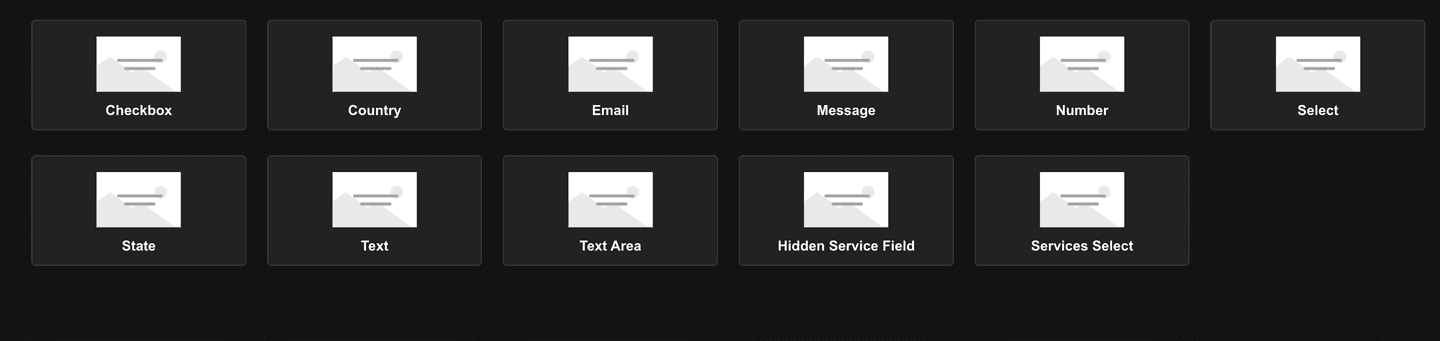
- Checkbox
- Country
- Message
- Number
- Select
- State
- Text
- Text Area
- Hidden Service Field
- Services Select
Field Configuration Options
For each field, you can customize:
- Field name (technical identifier)
- Label (displayed to visitors)
- Required status (make fields mandatory or optional)
- Default value (pre-populated information)
Simply select the field type you need and configure these options to create forms that work best for your business and customers.
Form Confirmation & Email Settings
Confirmation Options
After a visitor submits your form, you can choose how to respond:
Confirmation Type:
- Message: Display an on-page thank you message (default)
- Redirect: Send visitors to another page on your site or a third-party page
Submit Button Text: You can customize the text on your form's submit button to match your call-to-action (e.g., "Get Quote," "Contact Us," "Book Now").

Email Notifications
When someone submits your form, email notifications will automatically be sent:
- Default Recipient: By default, notifications go to the email you provided during setup
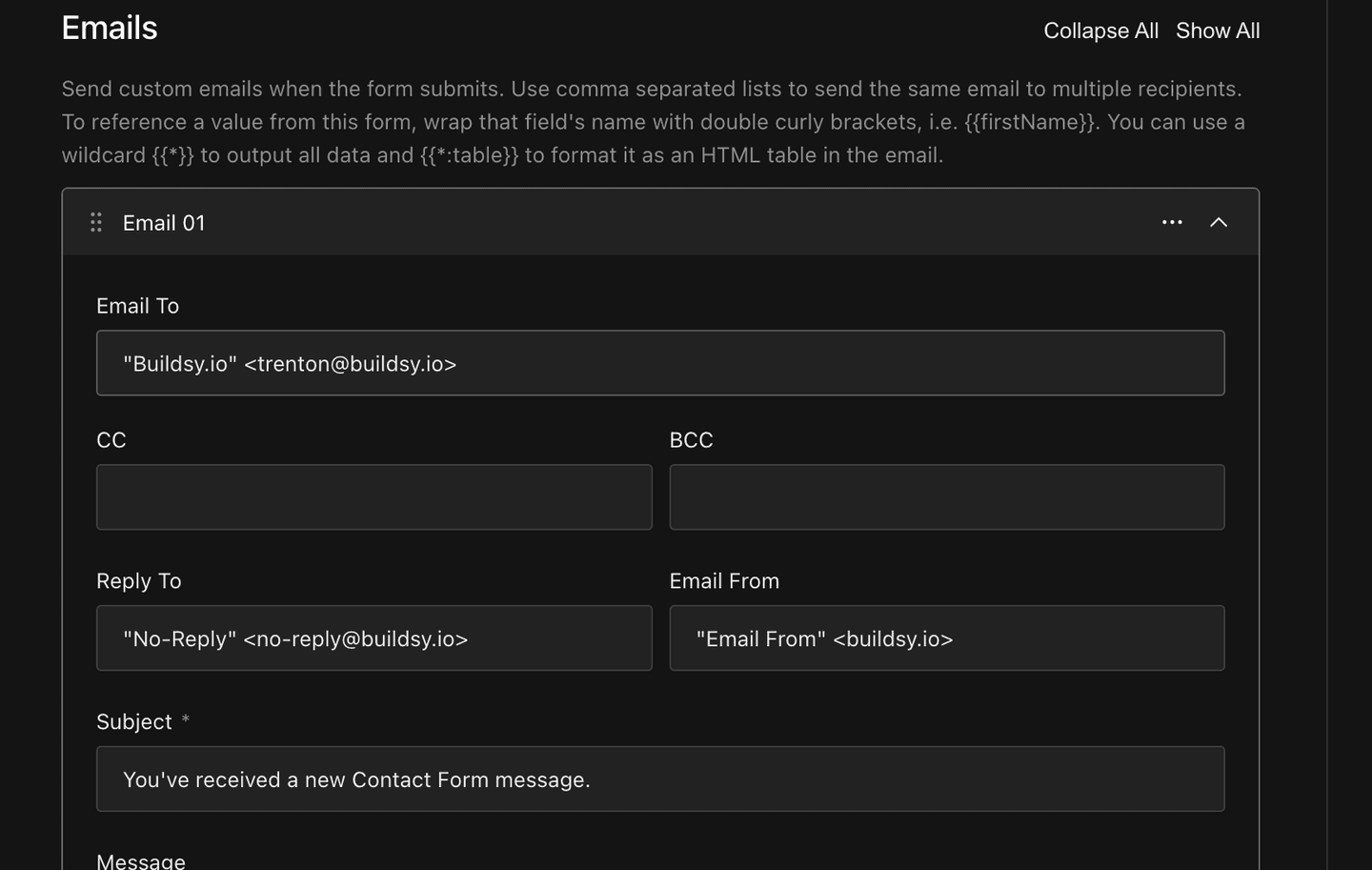
- Custom Recipients: You can add, change, or remove email recipients
- Multiple Recipients: Use comma-separated lists to send to multiple email addresses
Email Customization Features:
- Include form field data using double curly brackets: {{firstName}}
- Display all submitted data with the wildcard {{*}}
- Format data as an HTML table with {{*:table}}
- Customize email subject lines, sender details, and reply-to addresses
- Add CC and BCC recipients for team collaboration
These settings give you complete control over how your forms work and communicate with both your visitors and your team.